Kubernetes Gateway and Control Plane both in Kubernetes
Overview
In this approach, both Kubernetes Gateway and APIM Control Plane are in a Kubernetes cluster.
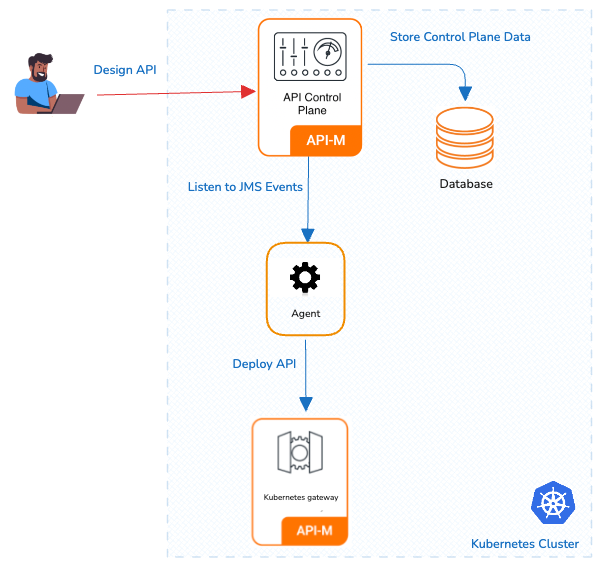
Advantages
- Resource Efficiency: This pattern maximizes resource utilization by allowing multiple components to coexist within the same cluster.
- Simplified Management: Managing a single cluster with multiple namespaces can be more straightforward compared to managing separate clusters.
Considerations
- Isolation: While namespaces provide a level of isolation, they may not offer the same level of isolation as separate clusters. Careful resource allocation and RBAC (Role-Based Access Control) policies are essential.
- APIM in K8s: Running APIM in a Kubernetes cluster may require additional resources and configurations compared to running it in a VM.
Installation guideline
Create Kubernetes namespace
In this guide, the APIM Control Plane and the Kubernetes Gateway are installed in the same namespace. If you prefer, you can use any standalone Kubernetes Gateway pattern to deploy the Kubernetes Gateway.
kubectl create ns apk
Set up WSO2 Kubernetes Gateway 1.3.0
-
Create a new Helm repository with the latest Kubernetes Gateway release using the following command. Let's consider the
<repository-name>aswso2apk.helm repo add wso2apk https://github.com/wso2/apk/releases/download/1.3.0-1 -
Execute the following command to update the helm repositories.
helm repo update -
Download
values.yamlFileTo obtain the
values.yamlfile, you can use thehelm show valuescommand. Replace<repository-name>with the actual repository name and<version-of-APK>with the desired version of the Kubernetes Gateway. Run the following command:helm show values wso2apk/apk-helm --version 1.3.0-1 > kg-values.yamlhelm show values <repository-name>/apk-helm --version <version-of-APK> > kg-values.yaml -
To add Kubernetes Gateway as a gateway, add the following configurations to the
kg-values.yamlfile downloaded in the previous step.-
Add the following configuration under the
wso2.apksectioncp: enabledSubscription: true host: "apim-apk-agent-service.apk.svc.cluster.local" skipSSLVerification: trueParameter Description enabledSubscriptionThis field must be set to true to retrieve subscription details at the gateway level. hostAgent hostname.
Format:{agentService}.{namespace}.svc.cluster.local
You can get the agentService name by usingkubectl get svc -n <namespace>
At this point, the agent is not configured so you do not need to change the default values. Once configured, make sure to change it here and do helm upgrade.skipSSLVerificationSkip SSL verification between the Agent and Gateway. -
Change the default listener hostnames.
By default, the Kubernetes Gateway has two listeners:
- System APIs Listener - api.am.wso2.com
- Gateway Listener - gw.wso2.com
If you wish to change the default hostname and vhost, modify the following values.yaml configurations. For example, if you want to deploy a production environment with the domain name example.com, expose your APIs through prod.gw.example.com, and expose system APIs through prod.apk.example.com, use the following:
wso2.apk.listener.hostname: 'prod.apk.example.com'
wso2.apk.dp.gateway.listener.hostname: 'gw.example.com'
wso2.apk.dp.configdeployer.vhosts: [{"hosts":["gw.example.com"],"name":"prod","type":"production"}]
-
-
Install the Helm chart.
To begin the installation, run the following command.
helm install apk wso2apk/apk-helm --version 1.3.0-1 -f kg-values.yaml -n apkhelm install <chart-name> <repository-name>/apk-helm --version <version-of-APK> -f <path-to-values.yaml-file> -n <namespace>
Set up WSO2 API Manager Control Plane
Follow the steps given below to set up WSO2 API Manager 4.5.0/4.6.0 in a Kubernetes cluster using Helm charts.
Important
If you need comprehensive documentation and configurations for the API Manager Helm chart, please refer to the APIM Helm documentation of the corresponding APIM version:
This guide focuses on a single deployment with the API Manager Control Plane.
-
Create a new Helm repository with the latest APIM release using the following command. Let's consider the
<repository-name>aswso2apim.helm repo add wso2 https://helm.wso2.com -
Execute the following command to update the helm repositories.
helm repo update -
Download the
values.yamlfile relevant to your APIM version using the relevant command:curl -o apim-values.yaml https://raw.githubusercontent.com/wso2/helm-apim/refs/heads/4.5.x/all-in-one/default_values.yamlcurl -o apim-values.yaml https://raw.githubusercontent.com/wso2/helm-apim/refs/heads/4.6.x/all-in-one/default_values.yaml -
To add Kubernetes Gateway as a gateway, add the following configurations to the
apim-values.yamldownloaded from the above step.- Configure the supported gateway types in API Manager.
Configurations: gatewayType: "Regular,APK"Configurations: gatewayType: "APK"-
Configure the JWKS URL to point to the APIM service URL
oauth_config: ... oauth2JWKSUrl: "http://apim-wso2am-all-in-one-am-service-1:9763/oauth2/jwks" -
Add the Kubernetes gateway environment to the environments list.
gateway: # -- Kubernetes Gateway environments environments: - name: "Default_APK" type: "hybrid" gatewayType: "APK" provider: "wso2" displayInApiConsole: true description: "This is a kubernetes gateway that handles both production and sandbox token traffic." showAsTokenEndpointUrl: true httpHostname: "default.gw.wso2.com:9095"gateway: # -- Kubernetes Gateway environments environments: - name: "Default_APK" type: "hybrid" provider: "wso2" gatewayType: "APK" displayInApiConsole: true description: "This is a hybrid gateway that handles both production and sandbox token traffic." showAsTokenEndpointUrl: true serviceName: "wso2am-gateway-service" servicePort: 9443 wsHostname: "websocket.wso2.com" httpHostname: "default.gw.wso2.com:9095" websubHostname: "websub.wso2.com"Parameter Description nameGateway name. This name is required in a later step to configure the Kubernetes Gateway Agent. typeTo handle both production and sandbox token traffic, set this to hybrid. gatewayTypeTo identify as a Kubernetes Gateway, this type is required to be set as APK. providerGateway provider. httpHostnameThis setting is critical for the control plane to locate the gateway listener. If you change the Gateway listener in the Kubernetes Gateway configuration, that change should be reflected here. The Gateway listener hostname must be configured as default.{gateway.listener.hostname}:9095, wheredefaultand9095are fixed values. -
Install the API Manager Control Plane.
Consider
apimas the<chart-name>for this guide. In the command,- For the
--versionparameter, use the version corresponding to the release from step 1. - Point to the relevant
apim-values.yamlfile you downloaded and edited in the previous steps.
The deployment will take a few minutes to complete.
helm install apim wso2/wso2am-all-in-one --version 4.5.0-1 -f apim-values.yaml -n apkhelm install apim wso2/wso2am-all-in-one --version 4.6.0-1 -f apim-values.yaml -n apkhelm install <chart-name> <repository-name>/wso2am-cp --version <version-of-APIM> -f <path-to-values.yaml-file> - For the
-
Install the NGINX Ingress Controller.
Please refer to the NGINX Ingress Controller documentation for more information.
-
To expose the APIM JWKS URL for API authentication and testing purposes, follow these commands:
-
Edit the APIM service named
apim-wso2am-all-in-one-am-service-1with the following command:kubectl edit svc apim-wso2am-all-in-one-am-service-1 -n apk -
Under the ports section, add the following content:
ports:
  - name: apim-jwks-port
    port: 9763
    targetPort: 9763
    protocol: TCP
-
Set up WSO2 Kubernetes Gateway Agent
Note
The Kubernetes Gateway Agent provides the connection between the APIM Control Plane and the Kubernetes Gateway.
-
Create a new Helm repository with the latest Kubernetes Gateway Agent release using the following command. Let's consider the
<repository-name>aswso2apkagentfor this guide.helm repo add wso2apkagent https://github.com/wso2/product-apim-tooling/releases/download/1.3.0helm repo add wso2apkagent https://github.com/wso2/product-apim-tooling/releases/download/1.3.1-1 -
Execute the following command to update the helm repositories.
helm repo update -
Download
values.yamlFileTo obtain the
values.yamlfile, you can use thehelm show valuescommand. Replace<repository-name>with the actual repository name and<version-of-agent>with the desired version of the Kubernetes Gateway Agent. Run the following command:helm show values wso2apkagent/apim-apk-agent --version 1.3.0 > kg-agent-values.yamlhelm show values wso2apkagent/apim-apk-agent --version 1.3.1-1 > kg-agent-values.yamlhelm show values <repository-name>/apk-helm --version <version-of-APK> > kg-agent-values.yaml -
Configuration required to connect the Kubernetes Gateway Agent in
kg-agent-values.yaml-
Configure Control Plane (APIM) related configuration in the Kubernetes Gateway Agent
controlPlane: enabled: true serviceURL: https://apim-wso2am-all-in-one-am-service-1:9443/ username: admin password: admin environmentLabels: Default_APK skipSSLVerification: true eventListeningEndpoints: amqp://admin:admin@apim-wso2am-all-in-one-am-service-1:5672?retries='10'&connectdelay='30'controlPlane: enabled: true serviceURL: https://apim-wso2am-all-in-one-am-service-1:9443/ username: admin password: admin environmentLabels: Default_APK skipSSLVerification: true eventListeningEndpoints: amqp://admin:admin@apim-wso2am-all-in-one-am-service-1:5672?retries='10'&connectdelay='30'Parameter Description serviceURLService URL of the API Manager Control Plane.
Format:{apimService}.{namespace}.svc.cluster.local
You can retrieve the apimService name usingkubectl get svc -n <namespace>environmentLabelsGateway environment label is the environment name that you define under the environments section in the API Manager values.yaml file, which sets up the Kubernetes Gateway. In this scenario, it's Default_APK.eventListeningEndpointsEvent listening endpoint in the API Manager. UsernameandPasswordAdmin credentials of the API Manager. -
Configure data plane (Kubernetes Gateway) related configuration in the Kubernetes Gateway Agent
dataPlane:
    enabled: true
    k8ResourceEndpoint: https://apk-wso2-apk-config-ds-service:9443/api/configurator/apis/generate-k8s-resources
    namespace: apk
Parameter Description k8ResourceEndpointThe service endpoint of the config deployer. Format: {configDeployerService}.{namespace}.svc.cluster.local:{port}/api/configurator/apis/. You can retrieve the configDeployerService name usingkubectl get svc -n <namespace>namespaceNamespace where the Kubernetes Gateway is deployed. -
Change the mode of the agent configuration as shown below.
agent:
    mode: CPtoDP
-
-
Install the Kubernetes Gateway Agent.
Install the Kubernetes Gateway Agent components and start WSO2 API Platform For Kubernetes. Consider
apkas the<chart-name>for this guide. - For the--versionparameter, use the version corresponding to the release from step 1. - Point to the relevantkg-agent-values.yamlfile you downloaded and edited in the previous steps.The deployment will take a few minutes to complete.
helm install apim-apk-agent wso2apkagent/apim-apk-agent --version 1.3.0 -f kg-agent-values.yaml -n apkhelm install apim-apk-agent wso2apkagent/apim-apk-agent --version 1.3.1-1 -f kg-agent-values.yaml -n apkhelm install <chart-name> <repository-name>/apim-apk-agent --version <version-of-APK-Agent> -f <path-to-values.yaml-file>
Verify the Deployment
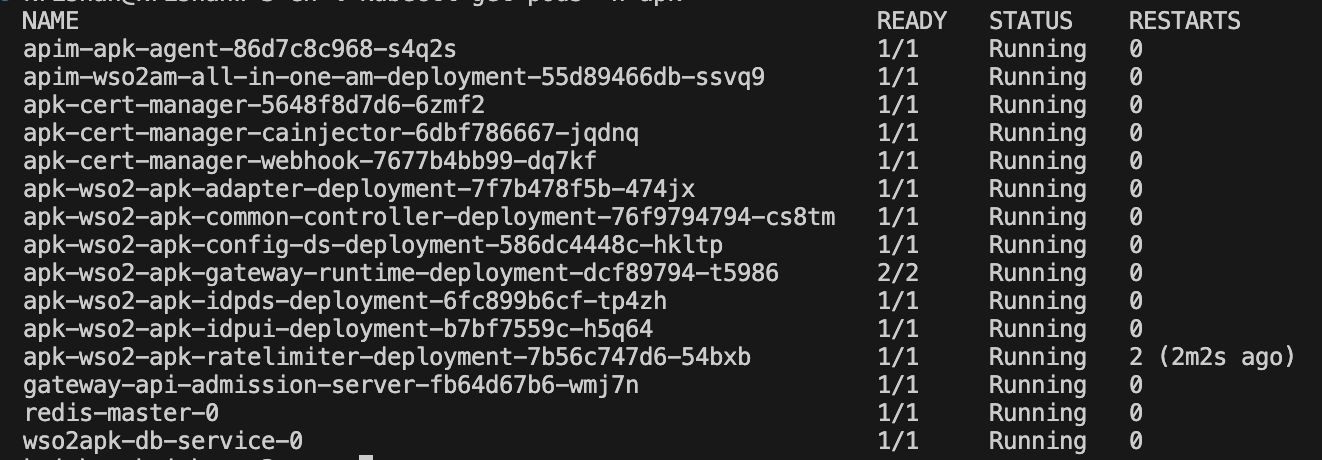
You can verify the deployment by executing the following command. Once completed, you will see the status of the pods as shown below.
kubectl get pods -n apk
Configure the Hosts File
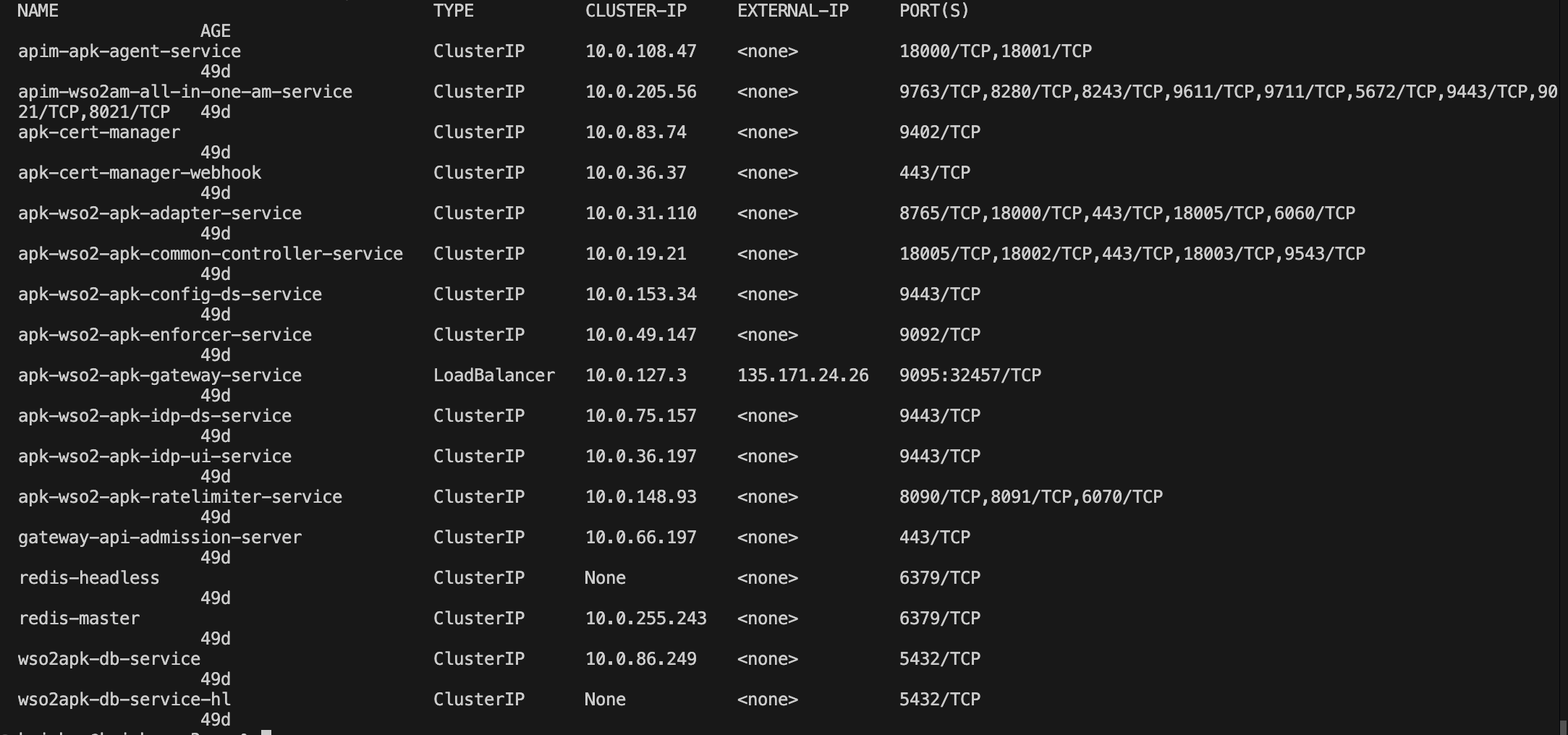
kubectl get svc -n apk
kubectl get ing -n apk

Add hostname mappings to the /etc/hosts file as follows:
| Domain name | IP |
|---|---|
| am.wso2.com (APIM Control Plane ingress hostname) | 135.171.24.117 (As per above image). You can find it using kubectl get ing -n <namespace> |
| default.gw.wso2.com (This should be the same as the value you added for the Gateway Listener) | 135.171.24.26 (As per above image). You can find it using kubectl get svc -n <namespace> |
| api.am.wso2.com (This should be the same as the value you added for the System APIs Listener) | 135.171.24.26 (As per above image). You can find it using kubectl get svc -n <namespace> |
| idp.am.wso2.com (You don't need to change this) | 135.171.24.26 (As per above image). You can find it using kubectl get svc -n <namespace> |
Login to the Publisher Console (https://am.wso2.com/publisher) of the WSO2 API Manager.